Users and Groups
This section allows you to create, delete, and manage users, guests, and groups, as well as their roles, permissions, visibility, and access information.
👤 Users
User management is handled through the Users section of the Administration module.
It allows you to create and delete users, as well as edit their identity, status, used storage space, and access information.
See the Users definition.
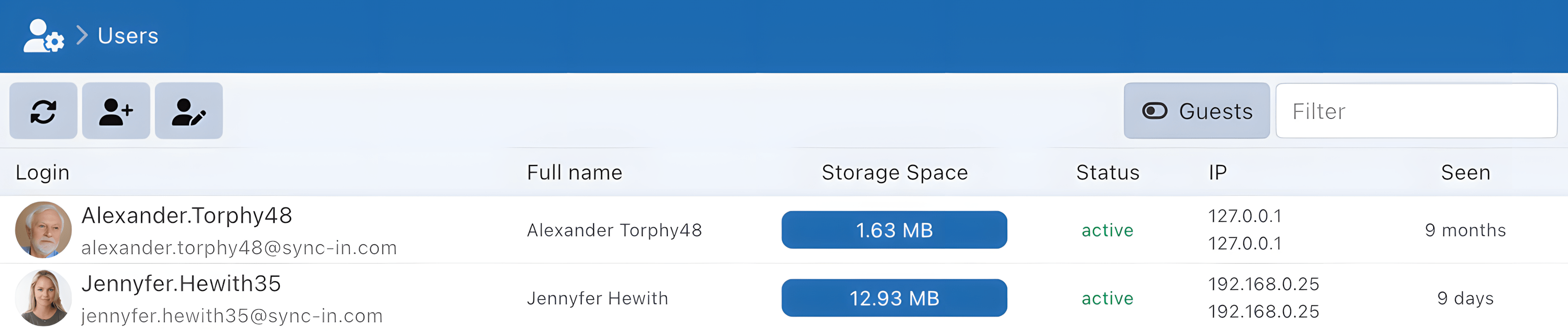
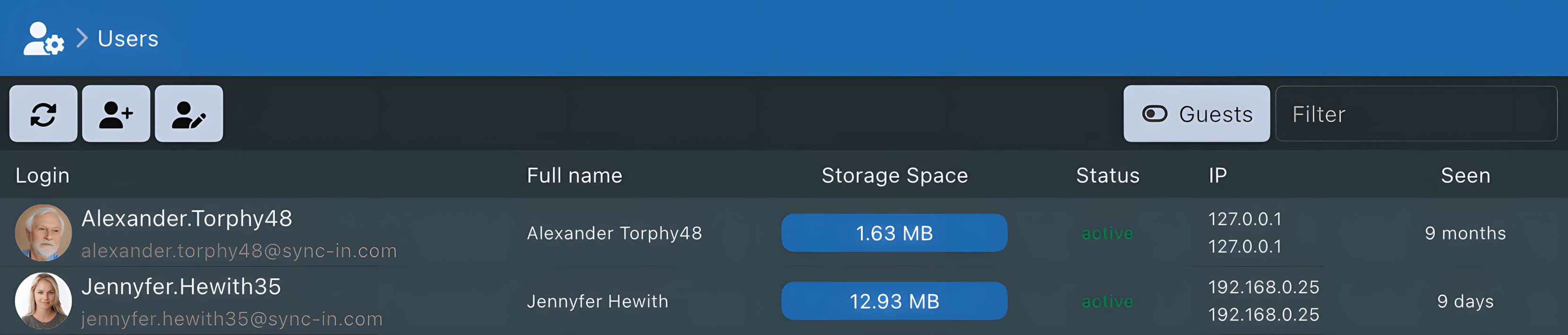
When a user is created, a personal storage space is automatically assigned, named after the user's login.
Login and email addresses are unique within a Sync-in instance.
Repeated authentication failures temporarily lock an account; they do not disable it.
When creating or editing a user, the following actions are available:
- Define or update account information (login, email, first name, last name, etc.)
- Enable or disable the account
- Disable two-factor authentication (when a user no longer has access to their authentication method)
- Grant or revoke administrator status
- Set or update the password
- Manage access or admin permissions
- Set group membership

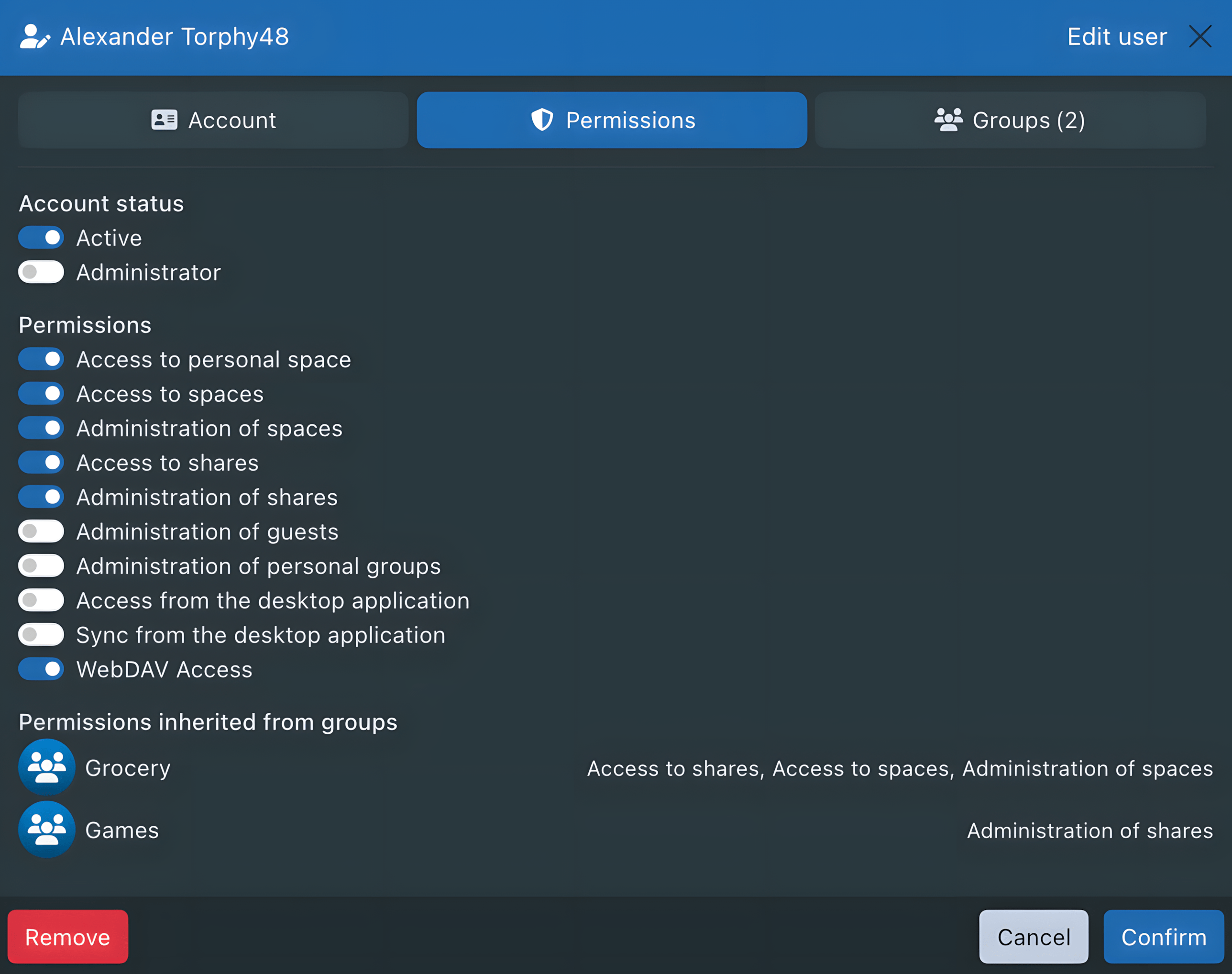
Permissions assigned directly to a user are combined with those inherited from groups. They are therefore cumulative.
👥 Guests
Guest management is handled from the Users section of the Administration module, by clicking the Guests button to switch to the guest view.
See the Guests definition.
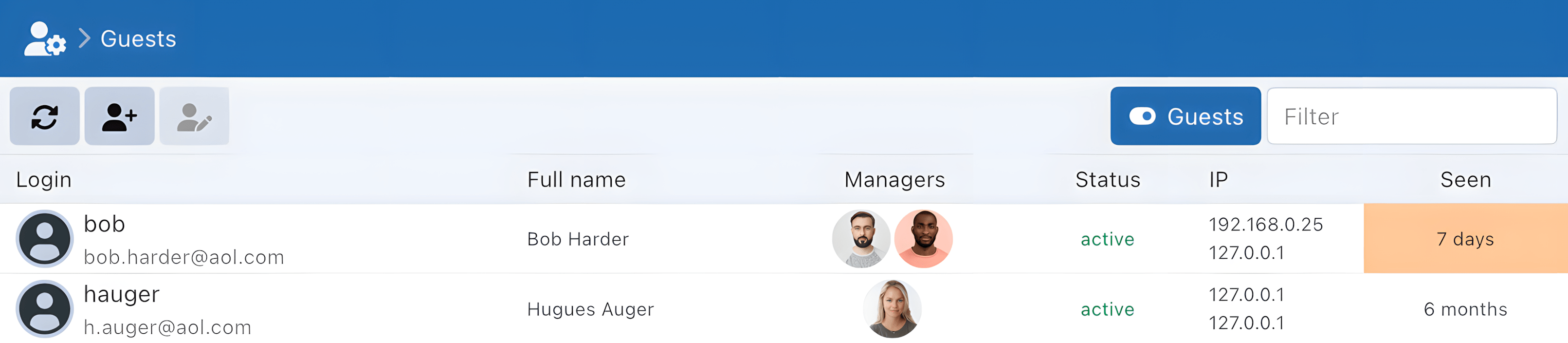

When creating or editing a guest, the following actions are available:
- Define or update account information (login, email, first name, last name, etc.)
- Enable or disable the account
- Set or update the password
- Manage the managers responsible for the guest
When a guest is created, no personal storage space is created.
Unlike regular users, guests cannot be assigned configurable access or administrative permissions at account level. Their capabilities within a collaborative space depend on the permissions granted in that space.
🔐 Account status and temporary locks
The administrative account status and the temporary authentication lock are independent controls for users and guests:
- Active (
isActive: true): the account is administratively enabled and can authenticate unless a temporary lock is in effect. - Suspended (
isActive: false): the account has been disabled by an administrator. New sign-ins and token refreshes are refused until an administrator reactivates it. Existing authenticated sessions remain usable until they expire. Reactivation resets the failed-attempt counter. - Locked: the account remains active, but new authentication checks are refused for 15 minutes after 10 failed password, application-password, TOTP, or recovery-code attempts. The lock expires automatically, and requests rejected during this period do not extend it.
The user and guest lists display Locked, while their edit dialogs display Temporarily locked. A complete successful authentication resets the failed-attempt counter. A temporary lock does not invalidate sessions that were already authenticated. If email delivery is configured, one security notification is sent when the account reaches the failed-attempt limit.
🧑🏫 Administrative Groups
Administrative group management is available from the Groups section of the Administration module.
See the Administrative Groups definition.
When creating or editing an administrative group, the following actions are possible:
- Set the name and a description
- Choose the visibility level
- Assign a parent group if the structure is nested
- Assign access permissions
Visibility
Each group can be configured with one of the following visibility levels:
- Visible (default): all users can see this group and its members, even if they're not part of it.
- Private: only members can see the group and its members. (Default for personal groups)
- Isolated: the group is completely hidden; members can't see the group or each other.
By default, a regular user without a group is visible to everyone. This can be changed with
applications.users.showUngroupedUsers in the server configuration.
User visibility rules
User visibility is computed from the current user's allowed users and groups:
- Regular users are visible when they belong to a group visible to the current user.
- Regular users without any group are visible only when
showUngroupedUsersis enabled. Guest accounts are excluded from this global visibility. - Guest accounts are persistent external collaborator accounts. They are visible to their managers and to members of personal groups where they are involved.
- Guest accounts do not receive the global ungrouped-user visibility branch and cannot use it to see regular users without groups.
- Guest link accounts are temporary accounts attached to public links. They are isolated from user and group visibility lists.
For restricted deployments, prefer private or isolated groups and disable showUngroupedUsers if users without groups must not be discoverable.
Management
While browsing groups, it's possible to add or remove members or subgroups, as well as manage managers.
Administrative groups can be organized as a flat structure or as nested groups (a group can contain other groups), to accurately reflect your organization's hierarchy or roles.
Subgroups do not inherit permissions from their parent groups. Each group manages its own permissions independently of its position in the hierarchy.
👨👩👧👦 Personal Groups
Personal group management is done through the Groups section of the Administration module by clicking the Personal button to switch views.
See the Personal Groups definition.
When creating or editing a personal group, only the name and description can be set.
Visibility
By default, personal groups are configured as Private.
Management
Management works the same as for administrative groups.
Personal groups do not support nesting: they cannot include other groups. They grant no permissions; their sole purpose is to facilitate collaboration.