Spaces and Shares
External location
Administrators can add an external location from the file system.
An external location corresponds to an existing directory on the server that can be directly integrated into the platform,
making it accessible through a share or a space
as an anchored file.
Configuration
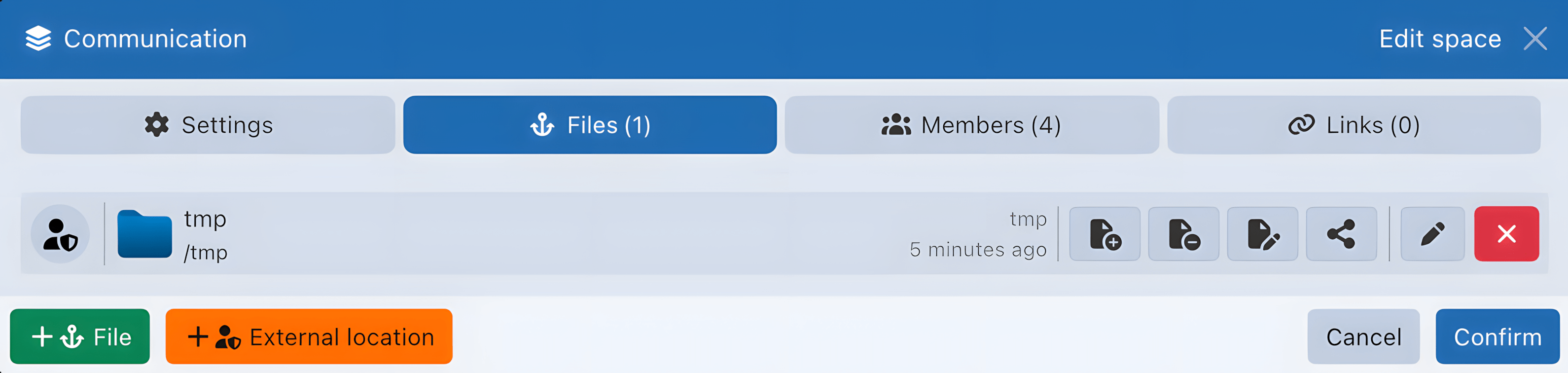
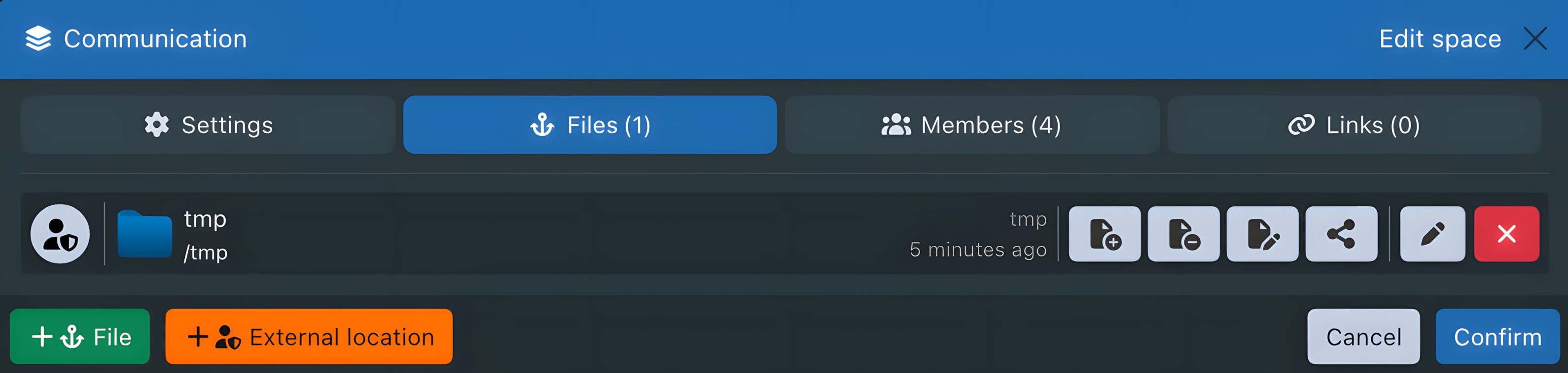
When creating or editing a share or a space, the External location button allows you to select a directory to attach:
- from a space in the Files tab
- from a share in the Settings tab
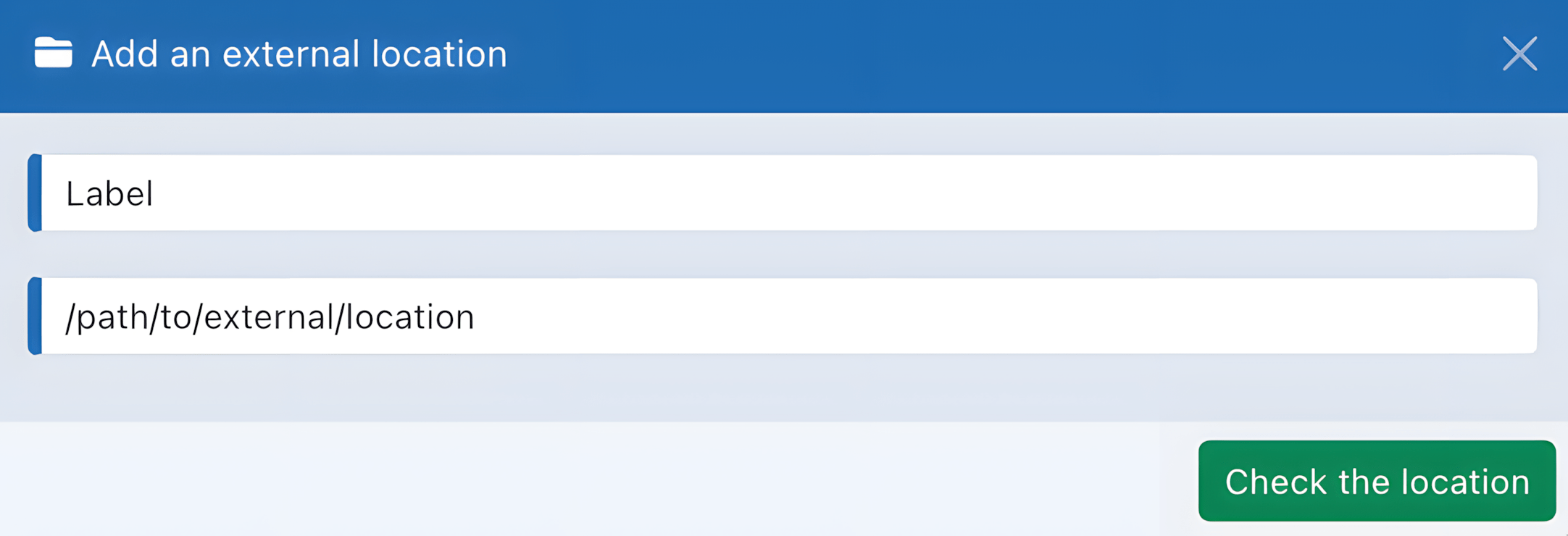
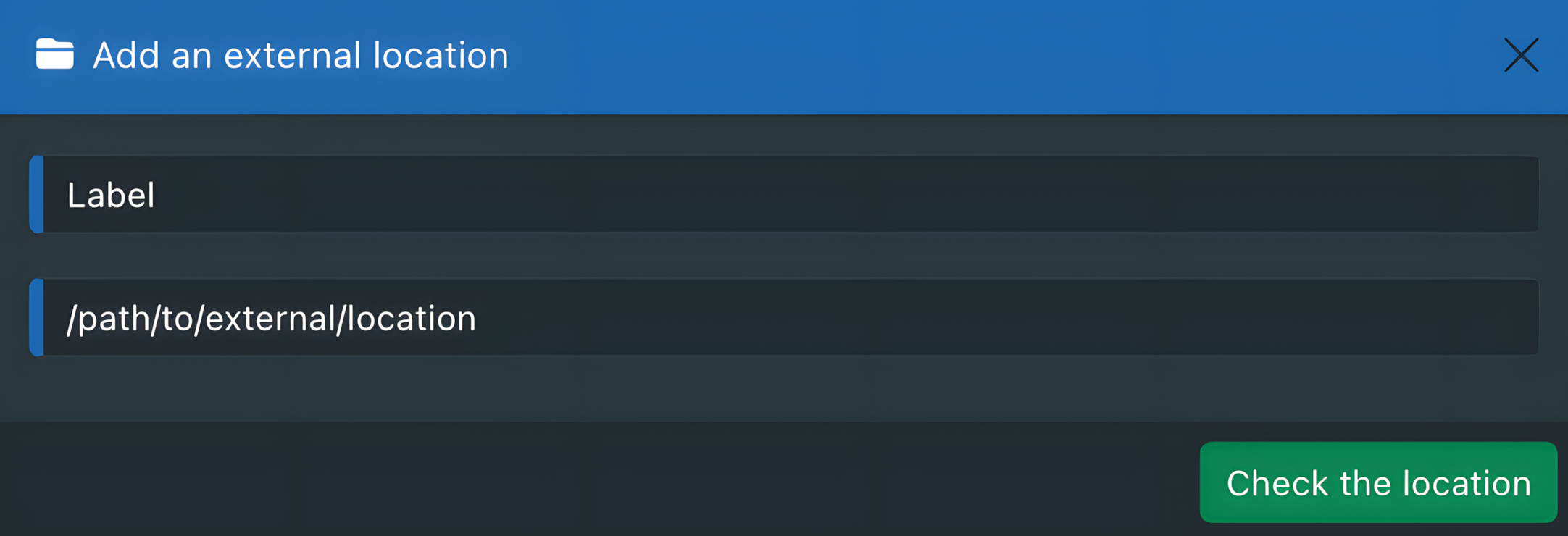
When adding the directory, the system automatically checks the permissions.
The user running the server process must have read and write permissions on the chosen directory.
Always check the directory permissions before adding it.
If the permissions are correct, the directory is then associated with the share or space as an anchored file.
Specifics
Through a share
- When an administrator makes an external location accessible through a share, that share becomes visible and manageable by all administrators.
- A storage quota can be applied to this type of share to ensure better control.
- Since this type of share has no owner and no managed trash, deleting a file permanently removes it. It is not moved to the trash of the user who performed the deletion.
Through an anchored file in a space
- When an external location is integrated into a collaborative space as an anchored file, its content is included in the calculation of used storage to prevent exceeding the quota when a limit is defined.
- When a file anchored to an external location is deleted, it is automatically moved to the space's trash.
Guest and link capabilities
The following table compares guest accounts and the isolated accounts created for space links. It applies only to collaborative spaces. Actions on content still depend on the permissions granted for the space and, for anchored content, on the permissions defined by its owner.
| Capability | Guest | Access through a space link |
|---|---|---|
| Browse and download accessible content | Available | Available only in the space attached to the link |
| Add or upload content | Requires Add | Requires Add |
| Copy content into a location | Requires Add on the destination | Requires Add on the destination |
| Move content | Requires Delete on the source and Add on the destination | Same |
| Edit, rename, overwrite, or lock content | Requires Edit | Requires Edit |
| Delete content | Requires Delete | Requires Delete |
| Comment on accessible content | Available | Available |
| Add accessible content to favorites | Available | Not available |
| Access through WebDAV | Available | Not available |
| Access a personal space or personal trash | Not available | Not available |
| Access a collaborative-space trash | Not available | Not available |
| Anchor personal files | Not available | Not available |
| Create shares, share links, or child shares | Not available | Not available |
| Become a space manager or manage its shares | Not available | Not available |
| Use desktop synchronization | Not available | Not available |
A space link remains limited to its collaborative space, while a share link remains limited to the shared item. Neither type of link grants access to any trash. See Trash for details about deletion and restoration.
Trash
Files deleted from personal or collaborative spaces are moved to the trash of their original location, so they can be restored until they are permanently removed. External shares are an exception: they have no managed trash, so deletions are permanent. Access to personal and collaborative-space trash is reserved for administrators and regular users. Guests and link pseudo-users can move active content to the trash when their effective permissions include Delete, but they cannot browse or manage a trash repository. Administrators can enable automatic trash cleanup after a configurable number of days, with separate settings for personal and collaborative spaces.
Configuration
Trash retention is configured through the applications.files.trashRetention section in
environment.yaml:
applications:
  files:
    trashRetention:
      users: 30
      spaces: 30
usersapplies to personal-space trash.spacesapplies to collaborative-space trash.
Set a numeric value to enable automatic cleanup after the selected number of days.
Use false or 0 to keep automatic cleanup disabled for the corresponding repository type.
Automatic trash cleanup is disabled by default to preserve the existing behavior.
Specifics
Personal spaces
- The
usersretention applies to files deleted from personal spaces.
Collaborative spaces
- The
spacesretention applies to each collaborative space's own trash. - Files deleted from an external location anchored in a space are moved to the space's trash and follow the collaborative-space retention.
External shares
- Administrator-created external shares have no managed trash. Deletions are permanent, and neither retention setting applies.